How to check GSTR1 in Giddh?
To view, file, and download GSTR-1 report in Giddh, log in to your Giddh account
To search anything in Giddh just press Ctrl+g (for Windows) or cmd+g (for Mac)
Press Ctrl+g or Cmd+g and search "GST"
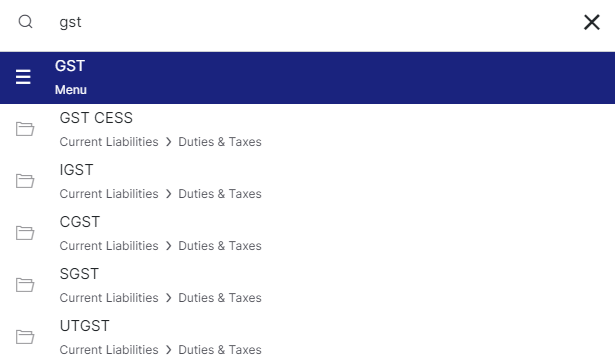
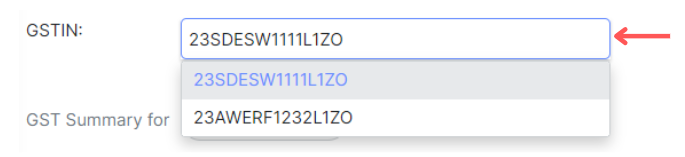
You are on the GST Dashboard, if you have multiple GSTIN then click on the GST number to select the required GSTN for the reports
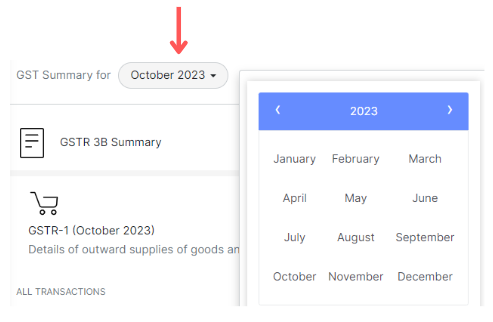
Click on the Period button to select the particular year and month for the reports
Select GSTR-1
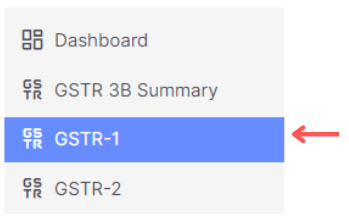
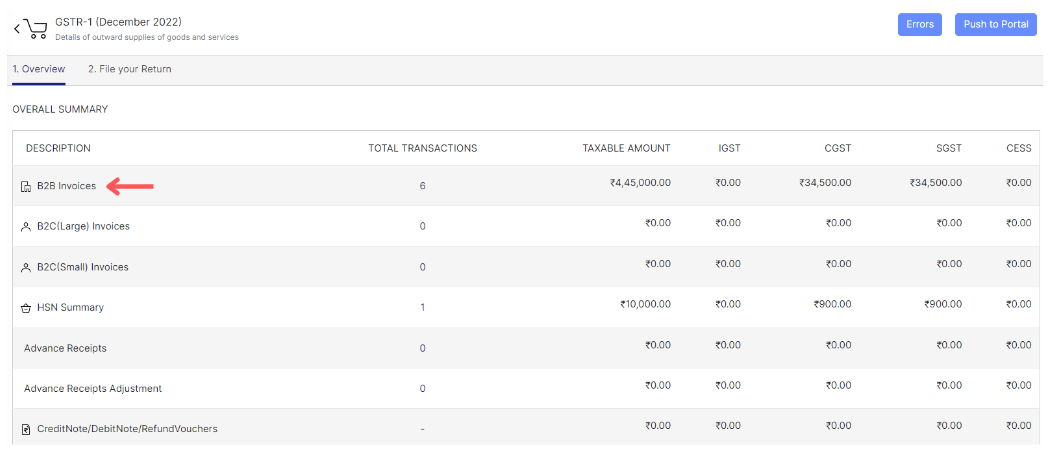
Now you are on the GSTR-1 page, here you can view its month-wise report
You can also see the list of transactions that come under a particular section by just clicking on it
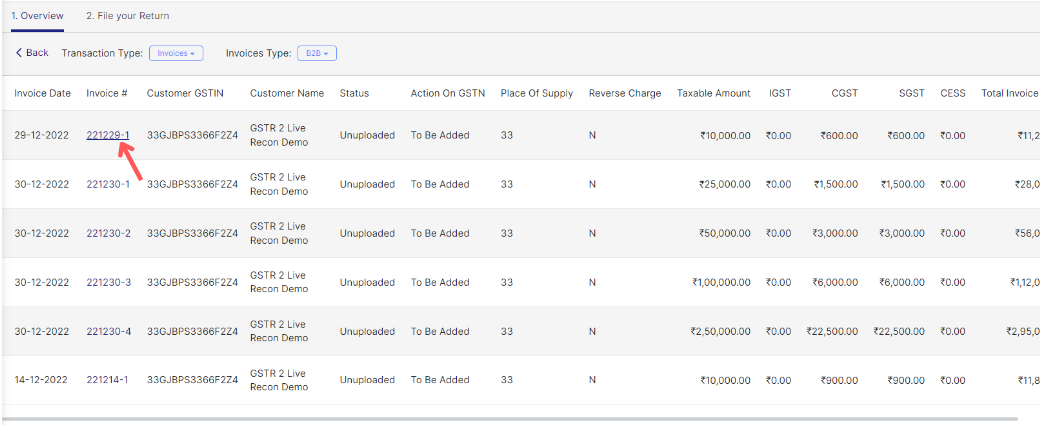
Here you can see the detailed view of all the B2B invoices of the selected period
Click on the Invoice no. to view the invoice
As well as you can Edit, Send mail, Download, and Print the invoice
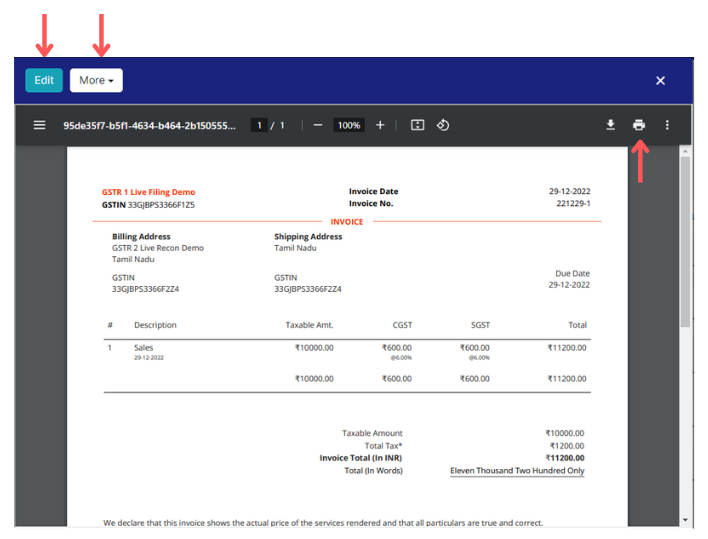
Edit- Click on the "Edit" button to edit the invoice
More- Click on the "More" button to Send or Download the invoice
Click on Print icon to print the invoice
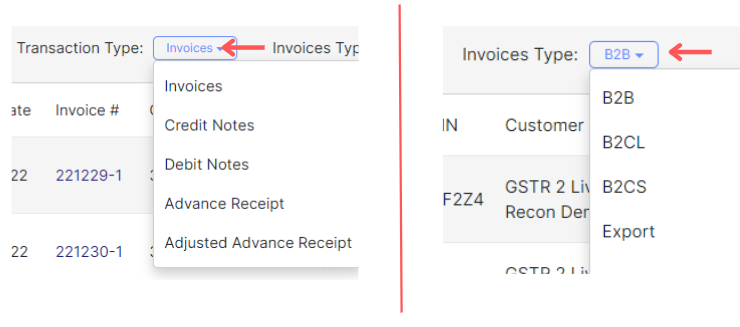
You can apply the filter of the Transaction type and the Invoice type as per your requirement too
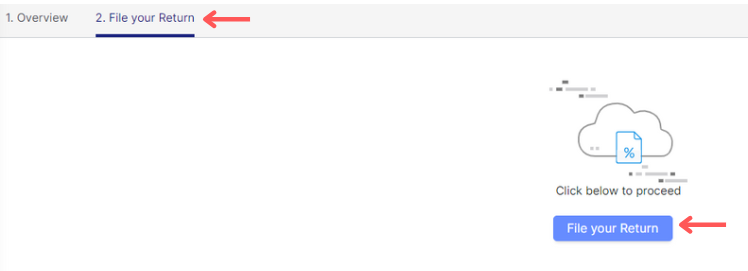
To file the return directly from Giddh, Click on "File your Return"
Note: You can only file your return when you are on Consolidated mode
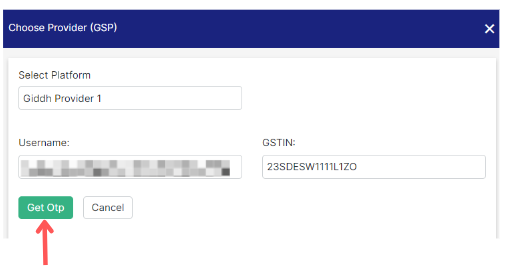
Fill the GST username, and click on "Get OTP" button
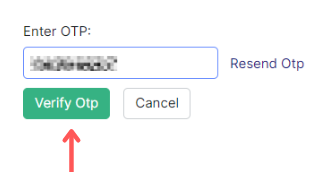
An OTP will be sent to your registered mobile number,
Fill the OTP > Click on "Verify OTP" button
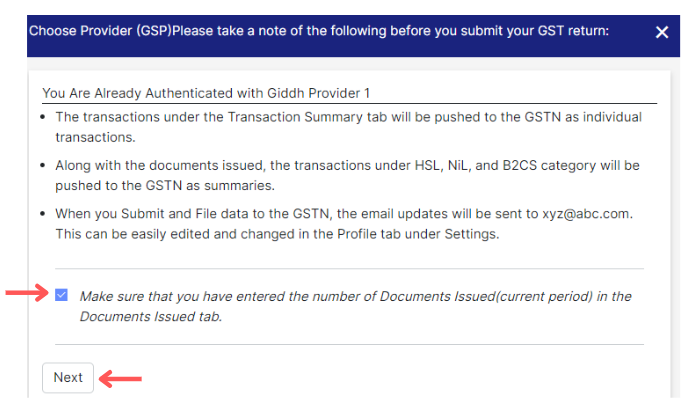
Check the checkbox > Click on the "Next" button
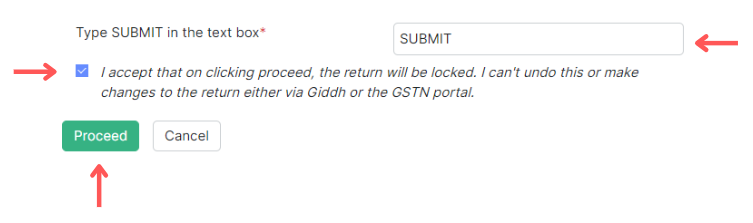
Type "SUBMIT" in the text box > Check the checkbox > Proceed
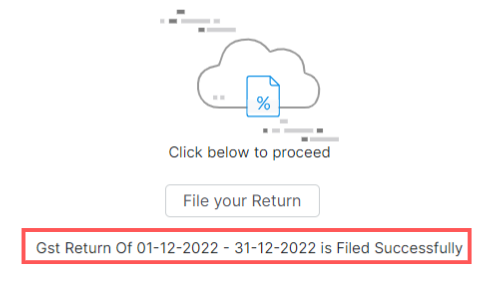
Now your GST portal is Authenticated with Giddh, and the GST Return for the selected period is filed
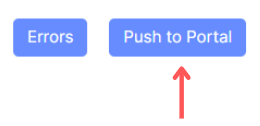
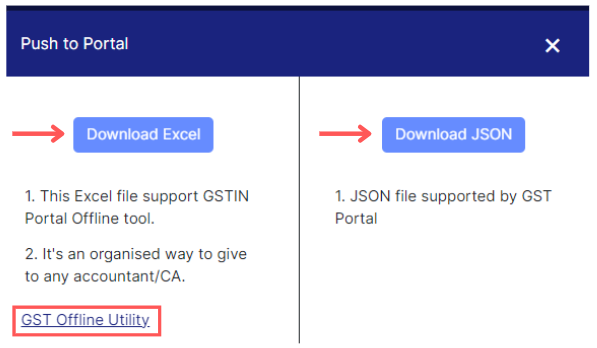
Click on "Push to Portal" to download the report
You can download the sheet into two format:
Download Excel: for download the Excel format
Download JSON: to download the JSON format
You can access the GST Offline Utility page by clicking on "GST offline utility"
Click on the "Errors" button to download the error sheet