How to check Purchase Register
To check the Purchase Register in Giddh, log in to your Giddh account
To search anything in Giddh just press Ctrl+G (for Windows) or Cmd+G (for Mac).
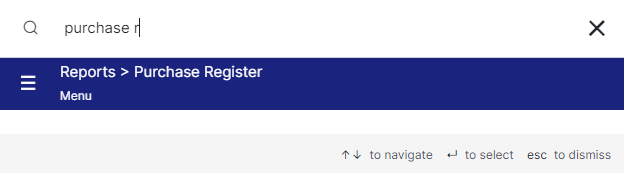
Press Ctrl+G/ Cmd+G and search Purchase Register > reports > purchase register
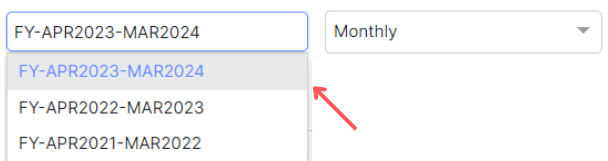
Click on the financial year and select the required one
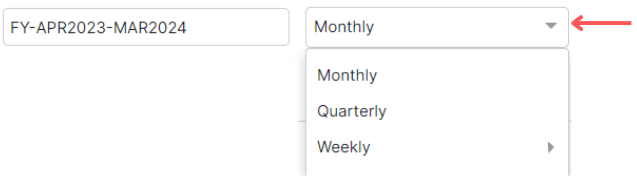
Now click on the more icon and select the period to see the period-wise purchase register
Here is the report of your selected period,
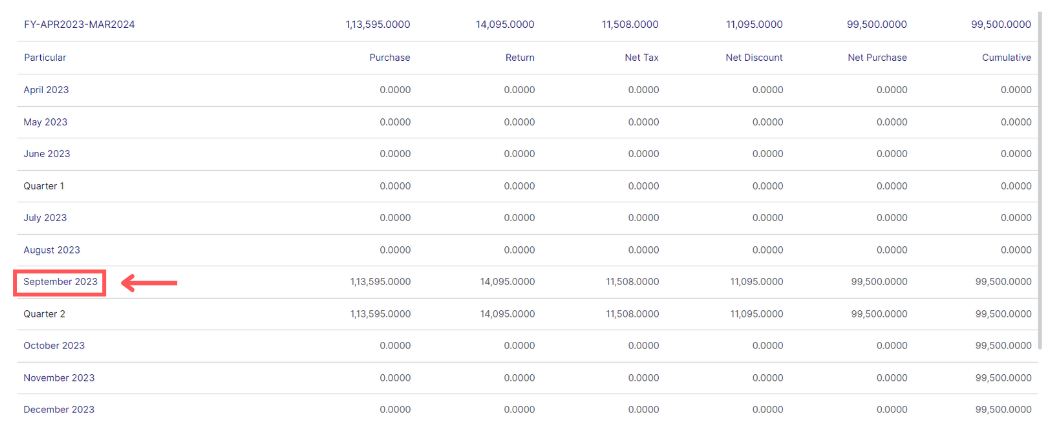
if you want to see all the transactions of a time period, then please click on it
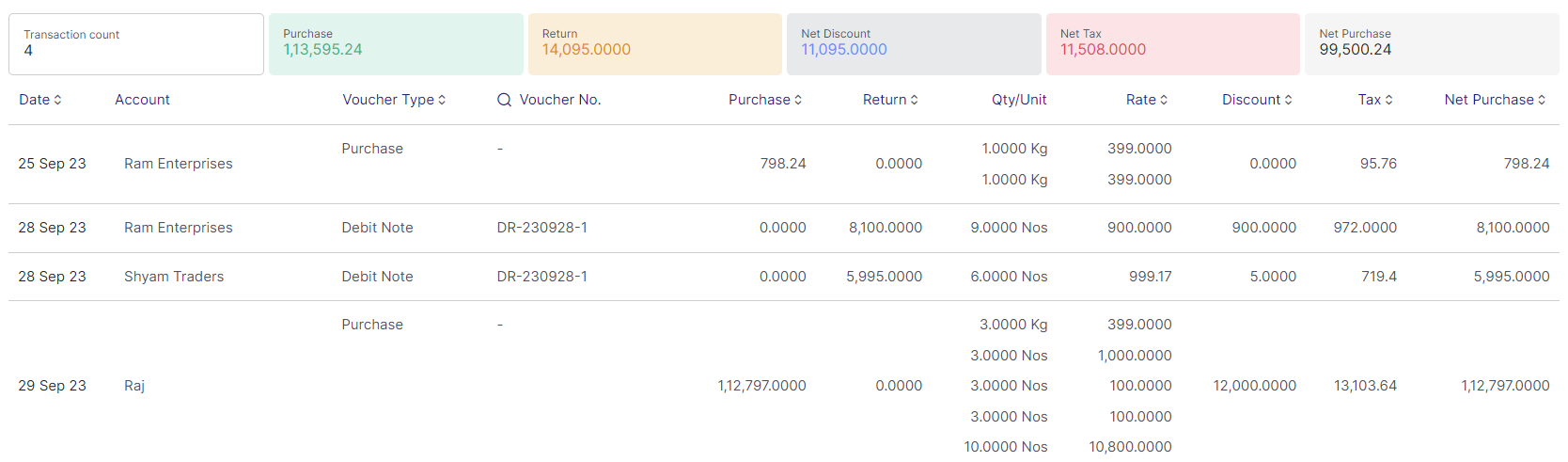
This is the report for the particular month, it includes the data of Purchase, Return, Net discount, Net tax, and Net Purchase
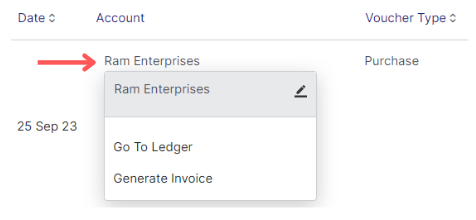
By double click on the account name provides several options:
1. Edit: Use the edit icon to modify the specific account
2. Go to ledger: Select "Go to ledger" to directly access the corresponding ledger account
3. Generate Invoice: Clicking on "Generate invoice" redirects you to the invoice module for creating a new invoice
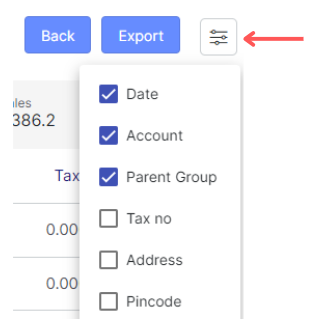
To export the data click on the "Export" button
if you want to apply filter to your data click on "Filter" icon