Import/Sync your Account Data from Tally ERP9 to Giddh
How to Sync Your Data From Tally ERP9 To Giddh?
Open Gateway of Tally and press F12 + Enter
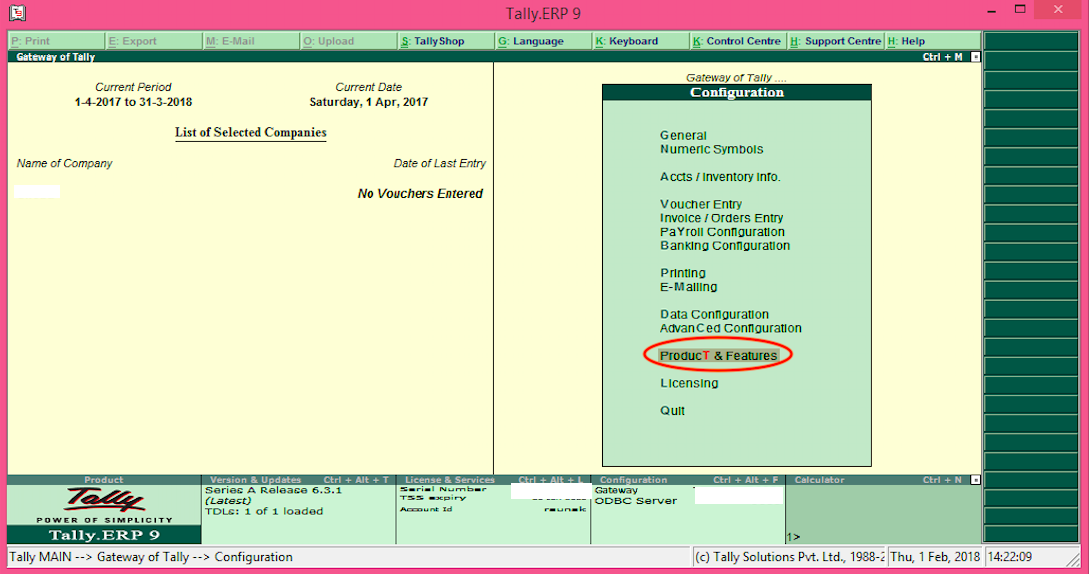
Click on ProducT & Features
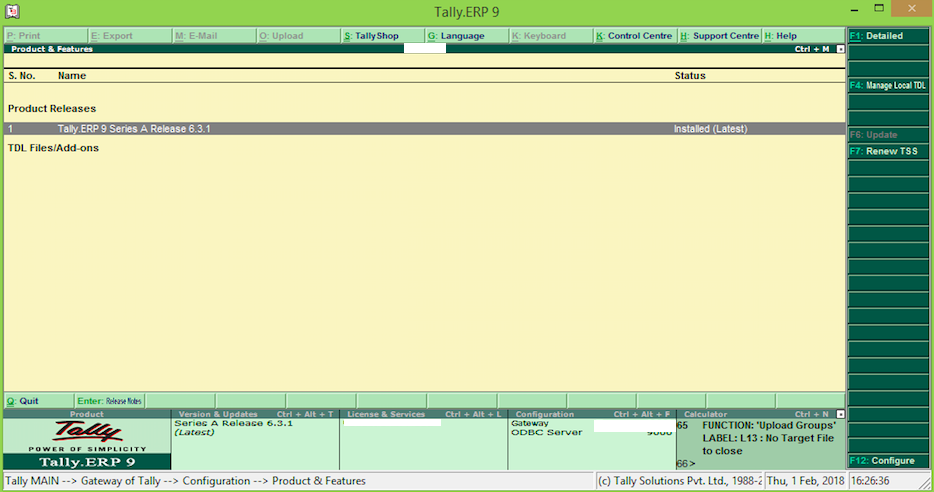
Press F4, Manage Local TDL and copy the TCP file path and paste here.
To get TCP file click Here or email to [email protected] or contact us @ +91 8889500411
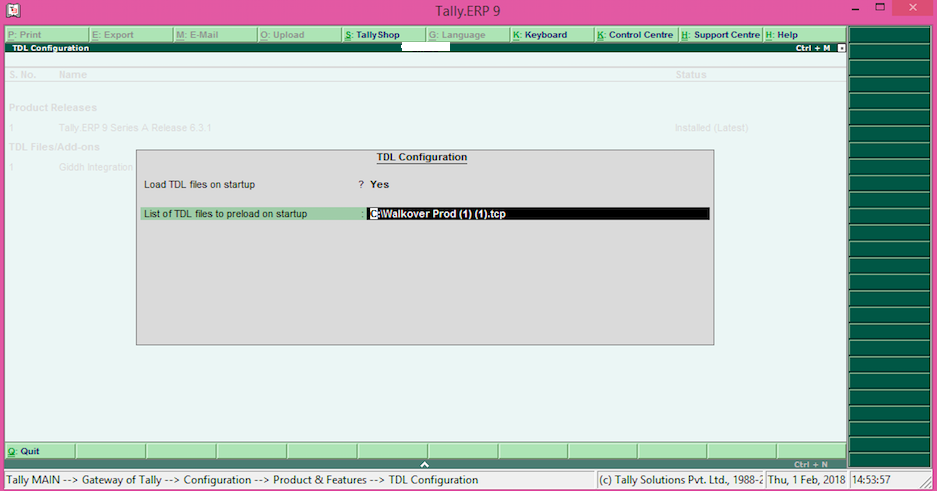
Press Enter to save the path of the file.
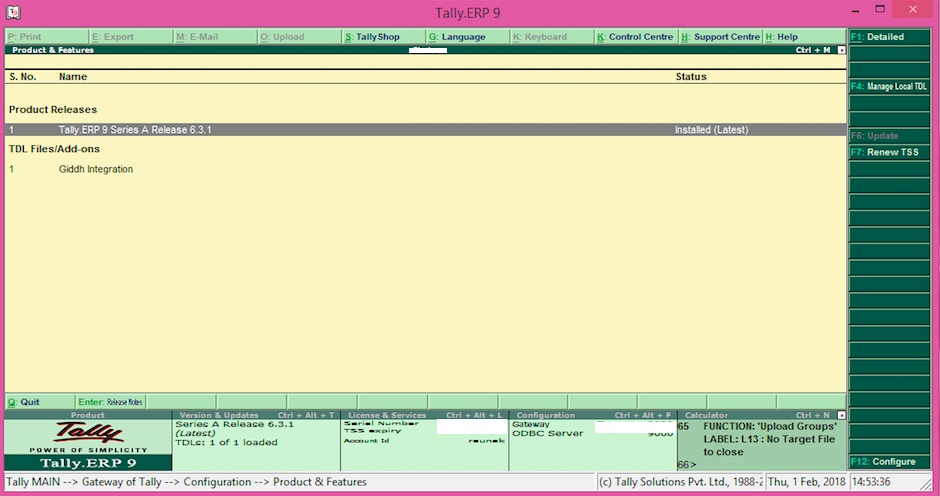
Escape and once again, go to the Gateway of Tally menu.
Press F11, select Add-On Feature (or press O). It will open the Add-On Feature page.

Now select “Yes” in Enable Service option
Enter the given URL in API field and change the company's unique name: https://api.giddh.com/company/{{companyUniqueName}}/imports/tally-import
Add the company's unique name in the next field.
In the next field add your Auth Key.
If you are an existing user of giddh, just log in your account to get the details if not then create an account in giddh by clicking here.
To get the unique name of your company to follow the below steps:
Go to Settings Menu by clicking the setting icon on the top right corner and select the company profile.
Or use CTRL+K(windows)/CMD+K(Mac) and search for profile and hit enter.
Copy the company Unique Name and save it in Tally.

To get the company auth-key:
Go to Settings Menu by clicking the setting icon on the top right corner and select user profile option then click on the Auth-key tab.
Copy this Main Auth-Key to enter in Tally

Escape and again go to the Gateway of Tally menu
Now select Sync JSON option from right hand side.
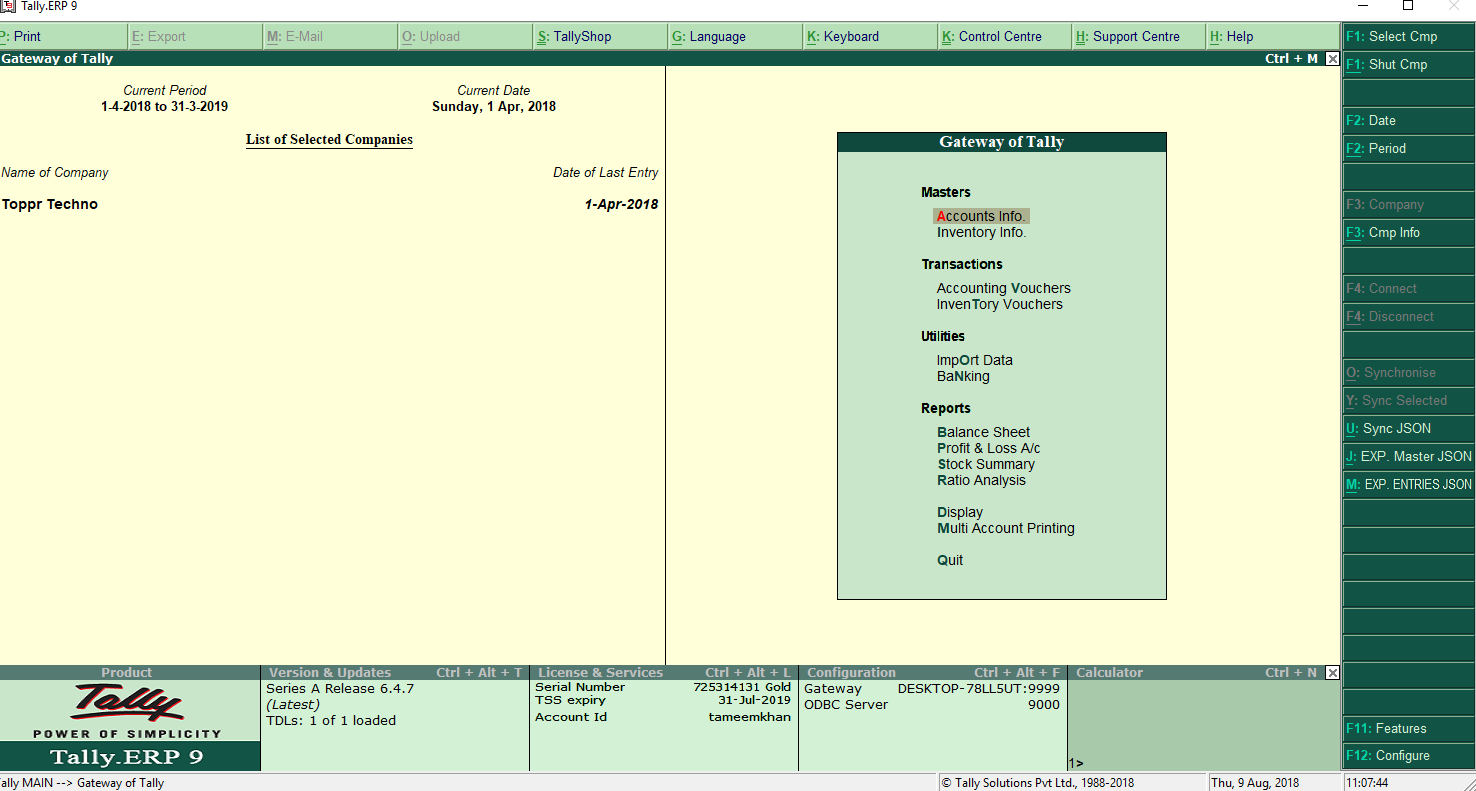
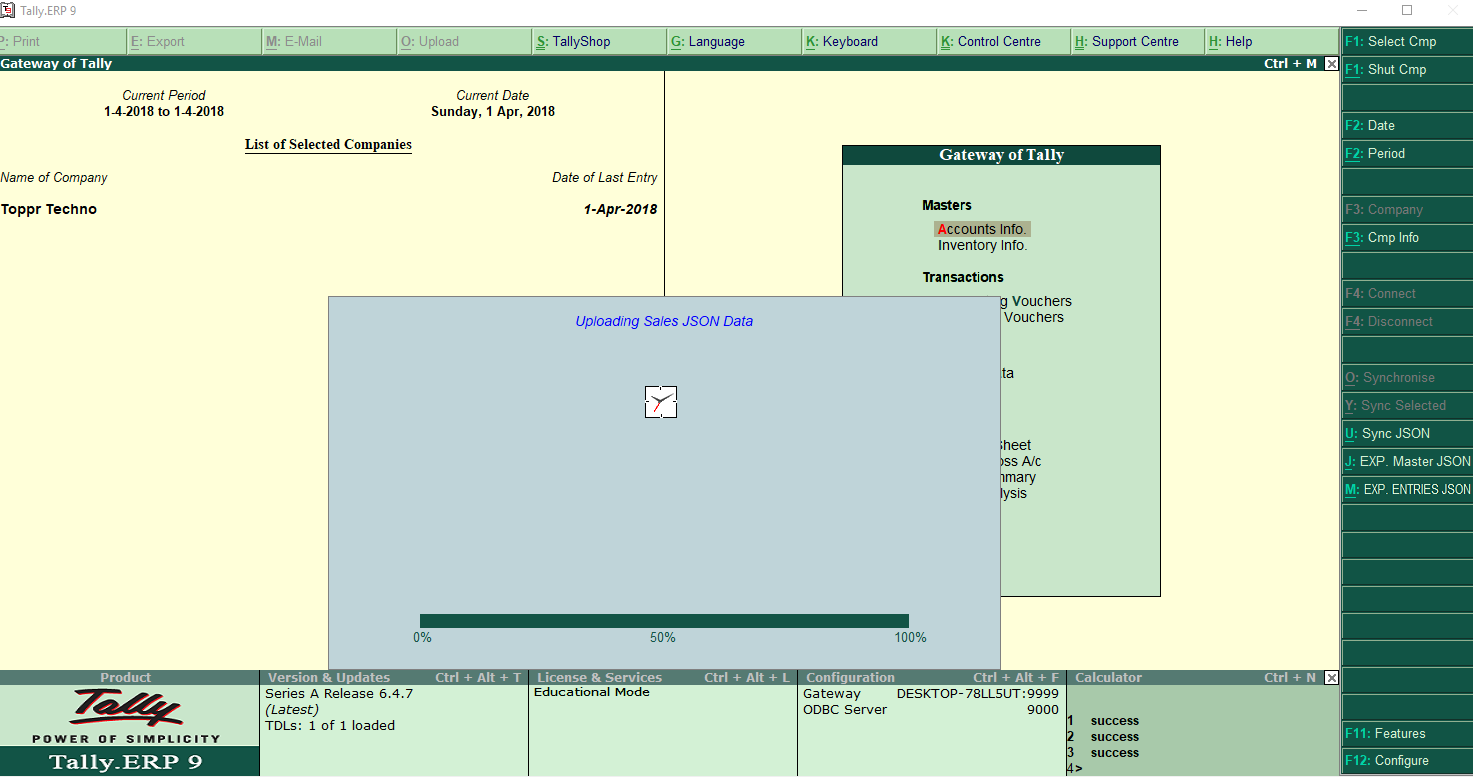
Now login to your giddh account, select your company to check your synced tally data online into giddh.
Start enjoying it :)